
The authLdap plugin will allow users with a members.eastkingdom.org account (that you specify) to log in to your WordPress Site. This will make it easier for you to delegate content creation and maintenance to others in your branch or greater office, and will remove much of the account management from your plate. Holders of designated offices will be able to log in with the roles you designate. This will also make it easier to hand off the site to your eventual successor or for the Kingdom Webministry to provide support.
Installation:
- Log in to your WordPress site and from the Dashboard go to the Plugins area.
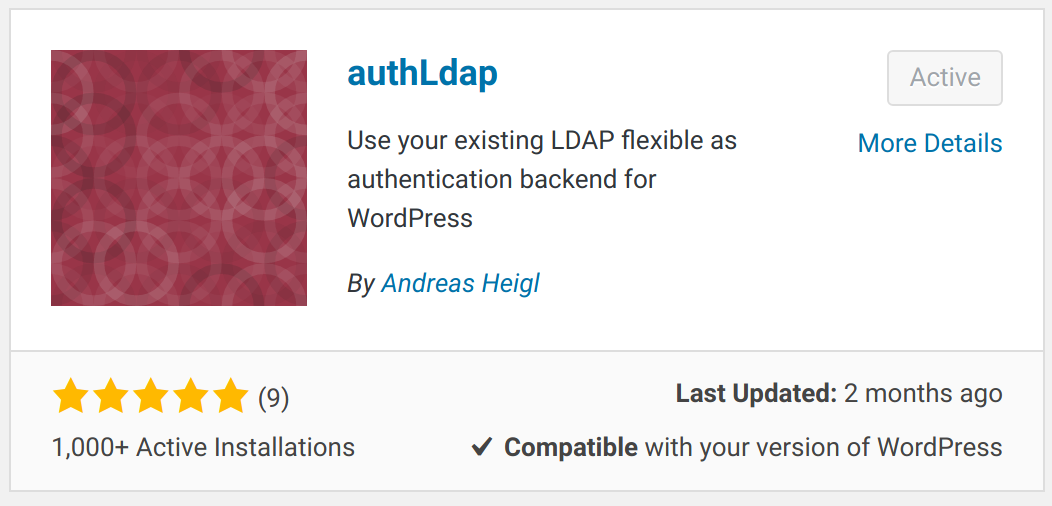
- Click the ‘Add New’ button or link, and enter ‘authLdap’ into the keyword search box on the right. authLdap should be the first result that appears.
- Click the ‘Install Now’ button to install authLdap. Once it is installed the button will turn into an ‘Activate’ button. Press ‘Activate’ to make the plugin active on your site.
Configuration:
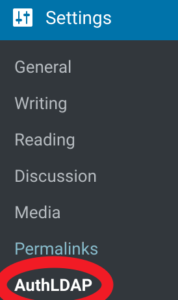
Under the ‘Settings’ section of WordPress you’ll find a page of settings for AuthLdap.
Go to the authLDAP settings page and enter in the following items into the specified fields:
- Enable Authentication via LDAP?: Yes – check this checkbox.
- LDAP URI: ldap://localhost/dc=eastkingdom,dc=org
- Name-Attribute: givenName
- Second Name Attribute: sn
- Group Attribute: mail
- Group Filter: (&(objectClass=groupOfNames)(member=%dn%))
Additionally, verify that “Map LDAP Groups to wordpress Roles?” is checked. This is the default, but it is important to verify because it is what enables the officer log in magic below.
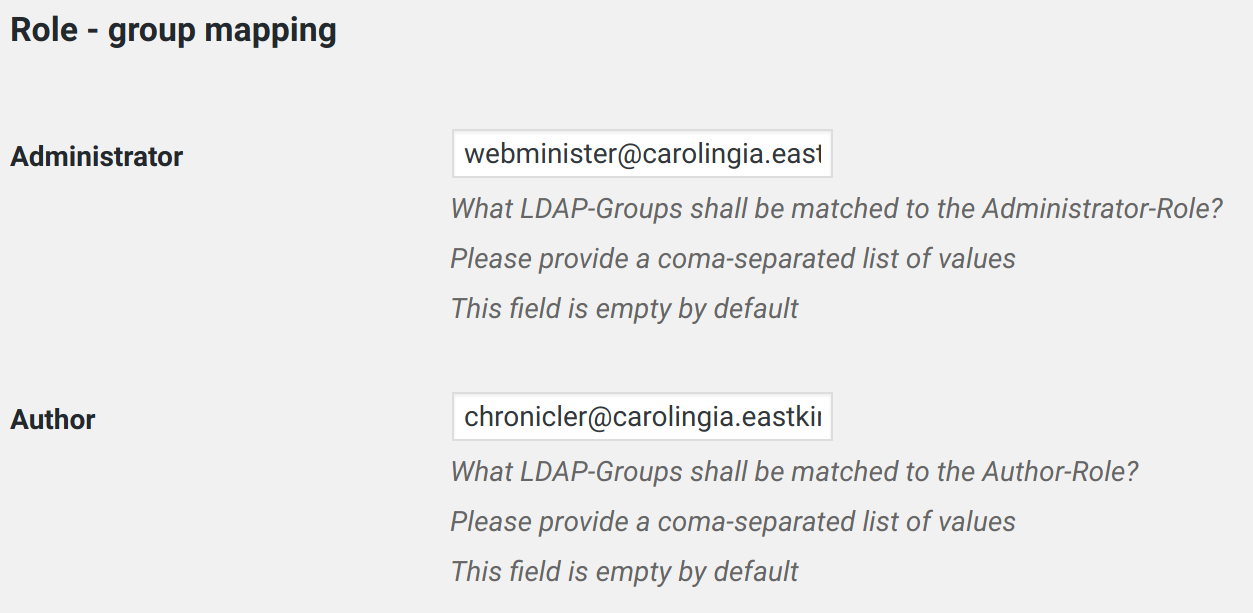
- Now under the section titled “Role-group Mapping” you will be able to set which officers will be able to log in under which roles. See below for a brief primer on WordPress Roles. The only role you’ll definitely want to add officers to is the Administrator role. In this box, enter in the following (substituting your group as needed): webminister@[branch].eastkingdom.org,wp-support@eastkingdom.org . This adds the webminister office for your group, and the Kingdom Webministry WordPress support team.
- Optionally add other offices into the other roles. e.g., seneschal@[branch].eastkingdom.org as Editor, or chronicler@[branch].eastkingdom.org as Author. By adding offices in this way no action will be needed on your part when an office changes hands – the new officer will be able to log in with the correct role, and the old officer will lose that access.







Now that the plugin is configured and all the settings are saved, any member attached to one of the entered offices can log in with their member number as their username and their EK account password. They’ll automatically be granted a WordPress Role based on the associations set above. Once logged in you can set them as the author of a page, granting them the ability to edit that page. You can also use all of the other ownership and permission options available in WordPress. Remember that you will see them in WordPress under their name and member number rather than their office address.
Officer changes
When an office is handed off to a new member and you’ve completed making that change in FusionDirectory, the new office holder will be able to log in automatically with no adjustments needed. The old officer will lose any wordpress roles associated with the office. If the old officer no longer holds any office, they will be unable to log in to WordPress at all. They will still appear in the WordPress users table, so you will likely want to manually remove them. You will also need to reassign any pages or posts owned by the old officer to the new one.
A brief primer on WordPress Roles
- Administrator – Full access, can manage the site, its contents, plugins, themes, users, etc.
- Editor – Can create and post content, and can edit other people’s content.
- Author – Can create and post content, can edit their own content.
- Contributor – Can create content, but an Editor or Administrator must publish it.
- Subscriber – Can log in. Cannot create content. Only useful if you restrict access to functions (like commenting) or parts of the site to those who can log in.
You can also create additional roles with different abilities using the User Role Editor plugin. These customized roles will then appear in the settings page for you to add entries to.